
LV020-none模式
一、None 模式的网络拓扑
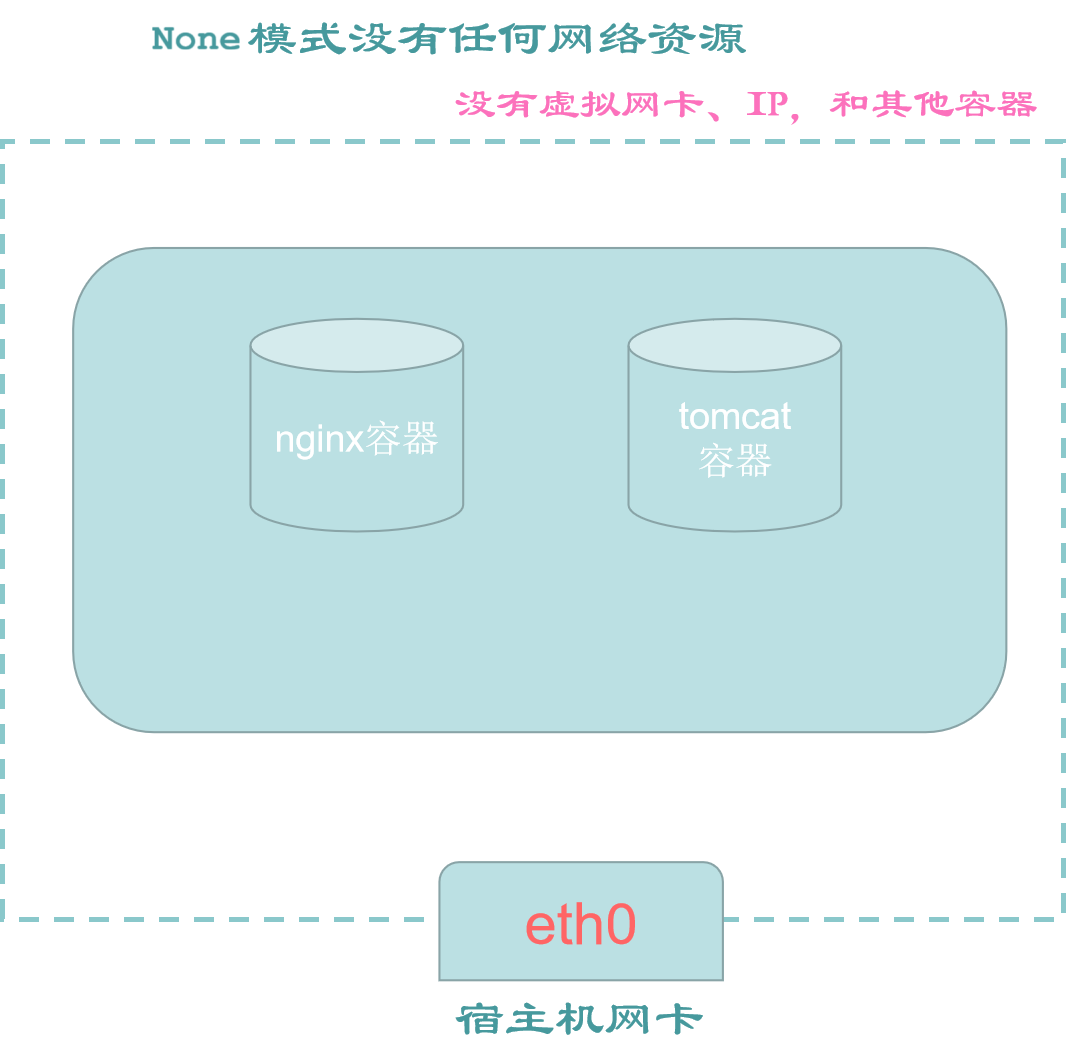
容器有自己的网络命名空间,但不做任何配置,它与宿主机、与其他容器都不连通的。
二、有什么特点?
完全隔离的网络环境,容器没有网络接口,没有任何的网络资源,不能和容器和宿主机之间进行正常的访问互动,适用于不需要网络的批处理任务。
三、Container 模式示例
首先重开一个 CNB 开发环境,或者删掉之前运行的容器和镜像。
shell
docker ps -a  #列出所有容器列表
docker rm -f $(docker ps -qa)  #强制移除所有容器
docker ps -a1. 未启动容器
1.1 宿主机网卡信息
shell
ifconfig【例】
shell
➜  /workspace git:(main) ifconfig
docker0: flags=4099<UP,BROADCAST,MULTICAST>  mtu 1500
        inet 172.17.0.1  netmask 255.255.0.0  broadcast 172.17.255.255
        ether 02:42:72:39:29:36  txqueuelen 0  (Ethernet)
        RX packets 0  bytes 0 (0.0 B)
        RX errors 0  dropped 0  overruns 0  frame 0
        TX packets 0  bytes 0 (0.0 B)
        TX errors 0  dropped 0 overruns 0  carrier 0  collisions 0

eth0: flags=4163<UP,BROADCAST,RUNNING,MULTICAST>  mtu 1500
        inet 172.28.142.2  netmask 255.255.255.0  broadcast 172.28.142.255
        ether 02:42:ac:1c:8e:02  txqueuelen 0  (Ethernet)
        RX packets 1211  bytes 524206 (511.9 KiB)
        RX errors 0  dropped 0  overruns 0  frame 0
        TX packets 1086  bytes 5391572 (5.1 MiB)
        TX errors 0  dropped 0 overruns 0  carrier 0  collisions 0

lo: flags=73<UP,LOOPBACK,RUNNING>  mtu 65536
        inet 127.0.0.1  netmask 255.0.0.0
        inet6 ::1  prefixlen 128  scopeid 0x10<host>
        loop  txqueuelen 1000  (Local Loopback)
        RX packets 60  bytes 4607 (4.4 KiB)
        RX errors 0  dropped 0  overruns 0  frame 0
        TX packets 60  bytes 4607 (4.4 KiB)
TX errors 0 dropped 0 overruns 0 carrier 0 collisions 0此时,只有物理网卡 eth0 和 docker0 虚拟网卡,别无其他网卡。
1.2 宿主机 80 端口
先用命令 ss -lntup 或者 netstat -nalpt 验证一下,是否有未知程序占用 80 端口:
shell
docker ps -a   # 实验前,查看是否有启动的容器,如果有暂时先停掉,特别是 nginx 容器
netstat -nalpt # 实验前,先查看宿主机的(80)端口占用情况对于这种模式可能不看这个信息,不过这里也记录一下吧。
【例】
shell
➜  /workspace git:(main) netstat -nalpt
Active Internet connections (servers and established)
Proto Recv-Q Send-Q Local Address           Foreign Address         State       PID/Program name
tcp        0      0 0.0.0.0:36000           0.0.0.0:*               LISTEN      87/sshd: /usr/sbin/
tcp        0      0 127.0.0.11:45371        0.0.0.0:*               LISTEN      -
tcp        0      0 0.0.0.0:8686            0.0.0.0:*               LISTEN      72/node
tcp        0      0 172.26.249.2:8686       172.26.249.1:58336      ESTABLISHED 72/node
tcp 0 0 172.26.249.2:8686 172.26.249.1:58352 ESTABLISHED 231/node会发现这里并没有任何服务占用 80 端口。
2. 启动容器
2.1 none 模式启动容器
shell
docker run -d --net=none nginx:alpine #以none 的网络模式启动 nginx【例】
shell
➜  /workspace git:(main) docker run -d --net=none nginx:alpine
Unable to find image 'nginx:alpine' locally
alpine: Pulling from library/nginx
2d35ebdb57d9: Pull complete
8f6a6833e95d: Pull complete
194fa24e147d: Pull complete
3eaba6cd10a3: Pull complete
df413d6ebdc8: Pull complete
d9a55dab5954: Pull complete
ff8a36d5502a: Pull complete
bdabb0d44271: Pull complete
Digest: sha256:b3c656d55d7ad751196f21b7fd2e8d4da9cb430e32f646adcf92441b72f82b14
Status: Downloaded newer image for nginx:alpine
70d06a1c43964ec5e2319f05b3876181349a5d081f7c041b55feaaff72d8b0d82.2 查看宿主机端口
shell
netstat -nalpt # 查看宿主机的端口占用情况(主要看 80 端口)【例】
shell
➜  /workspace git:(main) netstat -nalpt
Active Internet connections (servers and established)
Proto Recv-Q Send-Q Local Address           Foreign Address         State       PID/Program name
tcp        0      0 0.0.0.0:8686            0.0.0.0:*               LISTEN      72/node
tcp        0      0 127.0.0.11:38725        0.0.0.0:*               LISTEN      -
tcp        0      0 0.0.0.0:36000           0.0.0.0:*               LISTEN      88/sshd: /usr/sbin/
tcp        0      0 172.28.142.2:8686       172.28.142.1:59148      ESTABLISHED 72/node
tcp 0 0 172.28.142.2:8686 172.28.142.1:59160 ESTABLISHED 253/node没有任何服务占用 80 端口。
2.3 查看宿主机网卡信息
shell
ifconfig【例】
shell
➜  /workspace git:(main) ifconfig
docker0: flags=4099<UP,BROADCAST,MULTICAST>  mtu 1500
        inet 172.17.0.1  netmask 255.255.0.0  broadcast 172.17.255.255
        ether 02:42:72:39:29:36  txqueuelen 0  (Ethernet)
        RX packets 0  bytes 0 (0.0 B)
        RX errors 0  dropped 0  overruns 0  frame 0
        TX packets 0  bytes 0 (0.0 B)
        TX errors 0  dropped 0 overruns 0  carrier 0  collisions 0

eth0: flags=4163<UP,BROADCAST,RUNNING,MULTICAST>  mtu 1500
        inet 172.28.142.2  netmask 255.255.255.0  broadcast 172.28.142.255
        ether 02:42:ac:1c:8e:02  txqueuelen 0  (Ethernet)
        RX packets 5635  bytes 23684754 (22.5 MiB)
        RX errors 0  dropped 0  overruns 0  frame 0
        TX packets 4222  bytes 5598632 (5.3 MiB)
        TX errors 0  dropped 0 overruns 0  carrier 0  collisions 0

lo: flags=73<UP,LOOPBACK,RUNNING>  mtu 65536
        inet 127.0.0.1  netmask 255.0.0.0
        inet6 ::1  prefixlen 128  scopeid 0x10<host>
        loop  txqueuelen 1000  (Local Loopback)
        RX packets 112  bytes 8826 (8.6 KiB)
        RX errors 0  dropped 0  overruns 0  frame 0
        TX packets 112  bytes 8826 (8.6 KiB)
TX errors 0 dropped 0 overruns 0 carrier 0 collisions 0看到宿主机的网卡列表没有任何变化,仅 eth0 物理网卡和 docker0 虚拟网卡,两个网卡
2.4 查看容器端口占用情况
shell
docker ps【例】

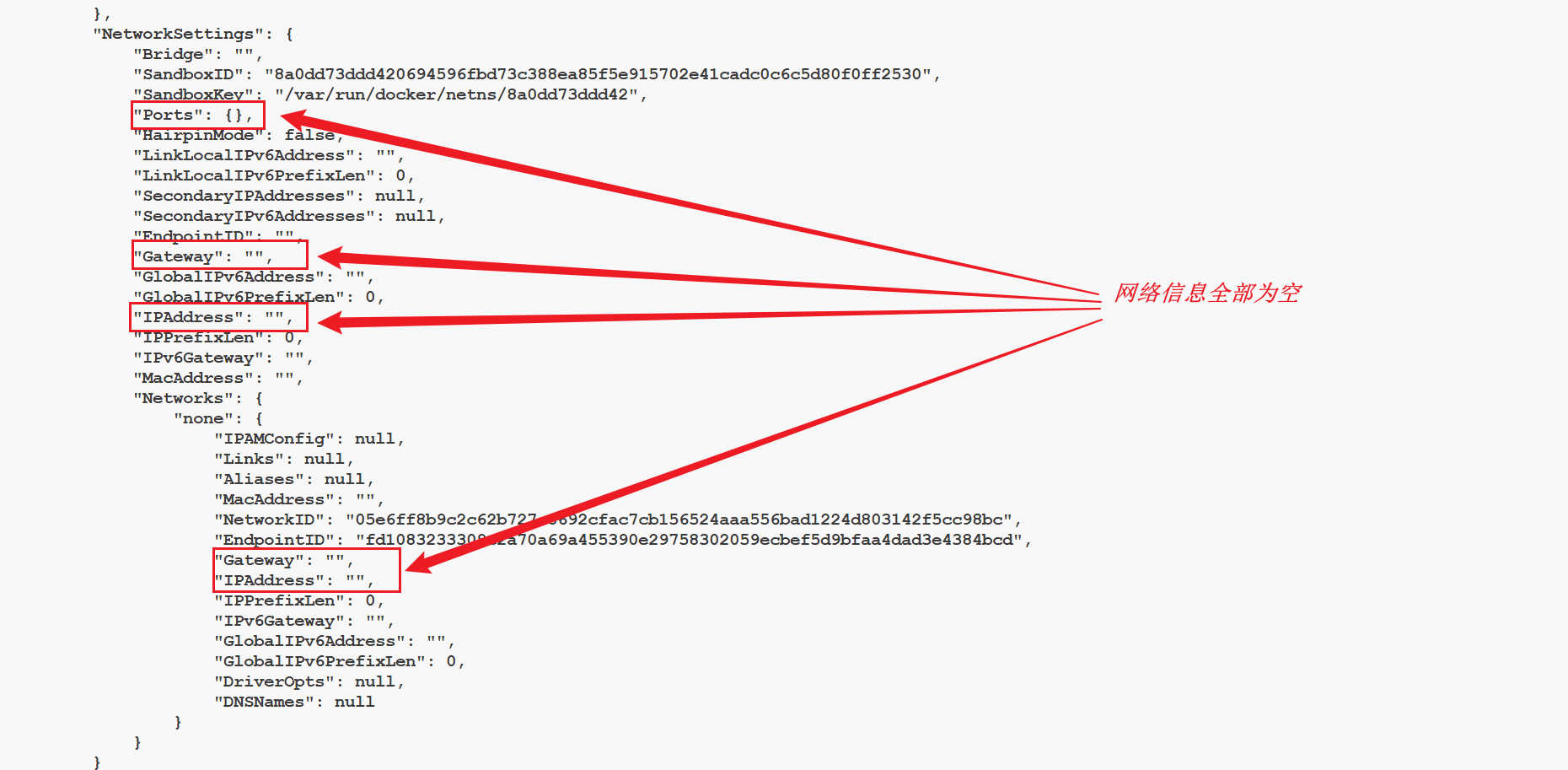
容器虽然启动了,但是并没有被分配任何端口。
2.5 容器的网络信息
shell
docker ps
docker inspect container_id #根据容器id,查看容器的网络信息【例】
2.6 是否可以联网?
我们通过以下命令进入容器内部:
shell
docker exec -it container_id /bin/sh
ifconfig
ping www.baidu.com【例】
shell
/ # ifconfig
lo        Link encap:Local Loopback
          inet addr:127.0.0.1  Mask:255.0.0.0
          inet6 addr: ::1/128 Scope:Host
          UP LOOPBACK RUNNING  MTU:65536  Metric:1
          RX packets:0 errors:0 dropped:0 overruns:0 frame:0
          TX packets:0 errors:0 dropped:0 overruns:0 carrier:0
          collisions:0 txqueuelen:1000
          RX bytes:0 (0.0 B)  TX bytes:0 (0.0 B)
/ # ping www.baidu.com
ping: bad address 'www.baidu.com'会发现容器只有一个本地回环的网卡,也并不能联网。
四、总结
该模式下的容器虽然可以启动,但是启动后,几乎什么服务都提供不了,因为它不会被宿主机分配任何网络资源。更没有IP和虚拟网卡。
参考资料:
Docker 四种网络模式(Bridge,Host,Container,None) - wq9 - 博客园
Docker 学习:容器五种(3+2)网络模式 | bridge 模式 | host 模式 | none 模式 | container 模式 | 自定义网络模式详解-CSDN 博客